
As an excited player eagerly awaiting the global launch of Kuro Games’ latest action RPG, I’ve been closely following every update. Wuthering Waves, a free-to-play gacha game with immersive open-world exploration, is finally upon us. The pre-download period has begun, allowing us to prepare our devices so we can jump straight into the action when servers go live. Having navigated the process myself, I want to share a comprehensive guide to ensure everyone can smoothly pre-download the game and troubleshoot any potential issues.
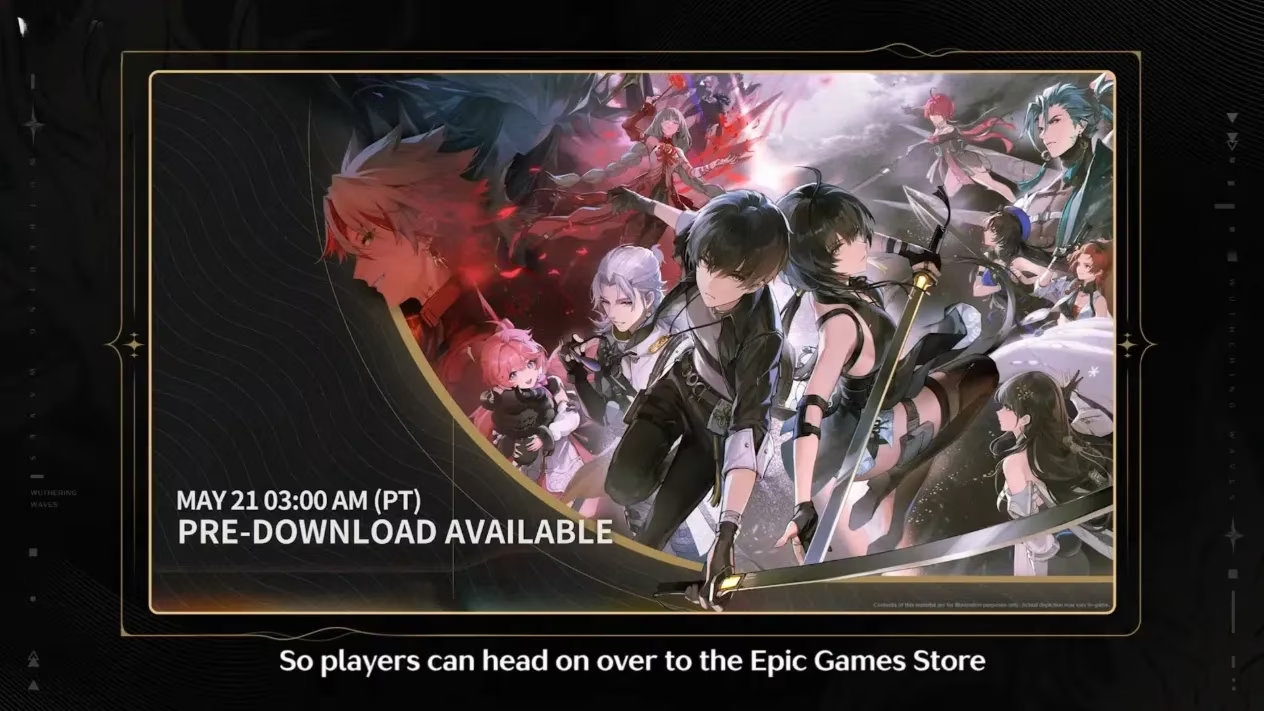
The pre-download for Wuthering Waves became available globally on Tuesday, May 21st, 2024. For players across different regions, this means you can now secure the game files ahead of the official release. The process is straightforward, but timing is key depending on where you are in the world. I found the official announcement very clear, providing specific times for major time zones to avoid confusion.
Here are the key pre-download times that were announced:
-
BST (Base Time): 11:00 AM, May 21st
-
CEST: 12:00 PM
-
ET: 6:00 AM
-
PT: 3:00 AM
-
CT: 5:00 AM
-
AET: 8:00 PM
-
JST: 7:00 PM
These simultaneous global times demonstrate Kuro Games’ commitment to a unified launch experience. As a player, I appreciate this transparency—it helps us plan our download schedule, especially considering the file size. Before you begin, I strongly recommend checking if your device meets the minimum and recommended system requirements. For PC players, you’ll need at least 18GB of free space just for the initial download, with additional content required upon first launch.
Pre-Downloading on Mobile Devices 📱
For mobile gamers, the process couldn’t be simpler. I completed my download in just a few minutes. Here’s what you need to do:
-
Open your device’s app store (Google Play Store for Android or App Store for iOS).
-
Search for “Wuthering Waves.”
-
Tap the ‘Install’ button.
If you had previously wishlisted the game, like I did, you might find it has already begun downloading automatically. However, remember to open the app after installation to pre-download several gigabytes of additional content. This crucial step will significantly reduce waiting time on launch day. The mobile version appears optimized well, with Kuro Games providing clear interface guidance throughout the installation process.
Pre-Downloading on PC 💻
PC players have two primary options for downloading Wuthering Waves. Having tried both methods, I can share insights into each approach.
Option 1: Official Website Download
-
Visit the official Wuthering Waves website.
-
Click the ‘Windows’ button prominently displayed on the homepage.
-
The launcher download should begin automatically.
-
Once downloaded, double-click the Wuthering Waves launcher file.
-
Click ‘Install’ in the bottom right corner of the launcher interface.
Option 2: Epic Games Store Download
-
Open the Epic Games Launcher on your computer.
-
Search for “Wuthering Waves” in the store.
-
Click the blue ‘Get’ button.
-
Navigate to your library, find Wuthering Waves, and select ‘Install.’
Regardless of which method you choose, I recommend launching the game client before the official release. This allows you to pre-download additional content and log into your account, ensuring you’re fully prepared when the servers open. The launcher interface is clean and user-friendly, with clear progress indicators—a detail I particularly appreciated.
Troubleshooting Common Issues ⚠️
During my pre-download experience and from community reports, several common issues may arise. Kuro Games has provided official solutions through their FAQ, which I’ve found incredibly helpful.
Issue 1: “vcruntime140_1.dll was not found” error
This typically occurs when essential runtime libraries are missing. The solution involves:
-
Reinstalling the game launcher completely.
-
If the error persists, downloading and installing the specific Visual C++ redistributable package from Microsoft’s official website.
-
After installing the required program, reinstall the launcher one final time.
Issue 2: Blank screen or “Program not responding” message
If the game launches to a blank screen or becomes unresponsive, try these steps in order:
-
Verify your device meets all system requirements (this should be your first check).
-
Add Wuthering Waves to your antivirus/malware protection whitelist, then restart.
-
Force close the program and relaunch it.
-
Navigate to the game’s installation directory, find
launcher.exe, right-click → Properties → Compatibility → Check “Run this program in compatibility mode” → Apply → OK, then restart. -
Update your graphics drivers to the latest version.
-
Use the ‘Repair’ function in the launcher’s top-right corner to verify and fix game files.
Issue 3: Anti-malware warnings about DLL file modifications
Some security programs may flag the installation process. If this happens:
-
Dismiss the prompt if you trust the source (official website or Epic Games Store).
-
Temporarily disable protection software during download, then re-enable it afterward.
-
Add the game directory to your security software’s exclusion list.
Issue 4: Game crashes immediately after startup
For immediate crashes:
-
Click the ‘Repair’ button in the launcher (this may take considerable time).
-
If repair completes but crashes continue, restart your computer and try repairing again.
-
If problems persist, contact Kuro Games support at
[email protected].
As we approach launch day, the excitement within the community is palpable. The pre-download process represents our first tangible step into the world of Wuthering Waves. From my experience, Kuro Games has implemented a relatively smooth preparation phase, though being aware of potential issues can save valuable time. Remember to allocate sufficient storage space—the initial 18GB requirement is just the beginning, with more content downloading upon first launch.
The global launch trailer, “WAKING OF A WORLD,” has only heightened anticipation, showcasing the game’s stunning visuals and dynamic combat system. As players, we’re not just downloading files; we’re preparing to embark on an adventure through expansive landscapes, engage in thrilling battles, and uncover the mysteries of the game’s narrative.
My final recommendation? Complete your pre-download as soon as possible. Server strain on launch day often causes slower download speeds, and having the game ready means you can join the adventure the moment it begins. Check your device compatibility, clear adequate storage space, and follow the steps outlined above. The world of Wuthering Waves awaits, and proper preparation will ensure your journey starts without technical hindrances. See you in the game!